Image Optimizer
Shrink images losslessly
Gijs Goudzwaard ✓ Verified
com.github.gijsgoudzwaard.image-optimizerImage Optimizer makes PNG and JPEG files smaller without changing how they look. It rewrites the files you pick in place, so the file you selected is the one that gets smaller.
The compression is lossless, which means the pixels come out identical and nothing is re-encoded at a lower quality. What comes off is whatever the encoder left on the table, so screenshots and interface images usually gain the most and photos straight out of a camera the least.
Features:
- Compress PNG and JPEG images without losing quality
- Optimize a whole batch at once, several files at a time
- Works offline, with no account and nothing uploaded
- Keeps the colour profile and the orientation, so images still look the way they did
- Keeps modification times, so a library sorted by date stays in order
- Quit quickly by pressing Ctrl + Q
Screenshots
Observed history
| App | Change | Version | When ↑ |
|---|---|---|---|
| updated | 0.6.0 | 16 Sept 2026 |
Upstream releases
Release notes supplied by the developer. These dates are not Flathub package publication times.
0.6.016 Sept 2026
- A whole folder can be handed to Image Optimizer now. Drop it on the window, choose it from the button, or right click it in Files and open it here. Everything under it is included, subfolders as well
- A folder is looked through first and then waits. The bar says how many images were found and how many folders were looked in, and nothing is touched until you press Optimize. Images you pick by name still start straight away, as they always did
- Files in a folder that are not images are counted rather than listed, so twenty images do not disappear under four hundred documents. Hidden folders are skipped, and so is anything behind a symbolic link
- Images found in a folder are listed by their path under it, so two files with the same name in different subfolders are two different rows
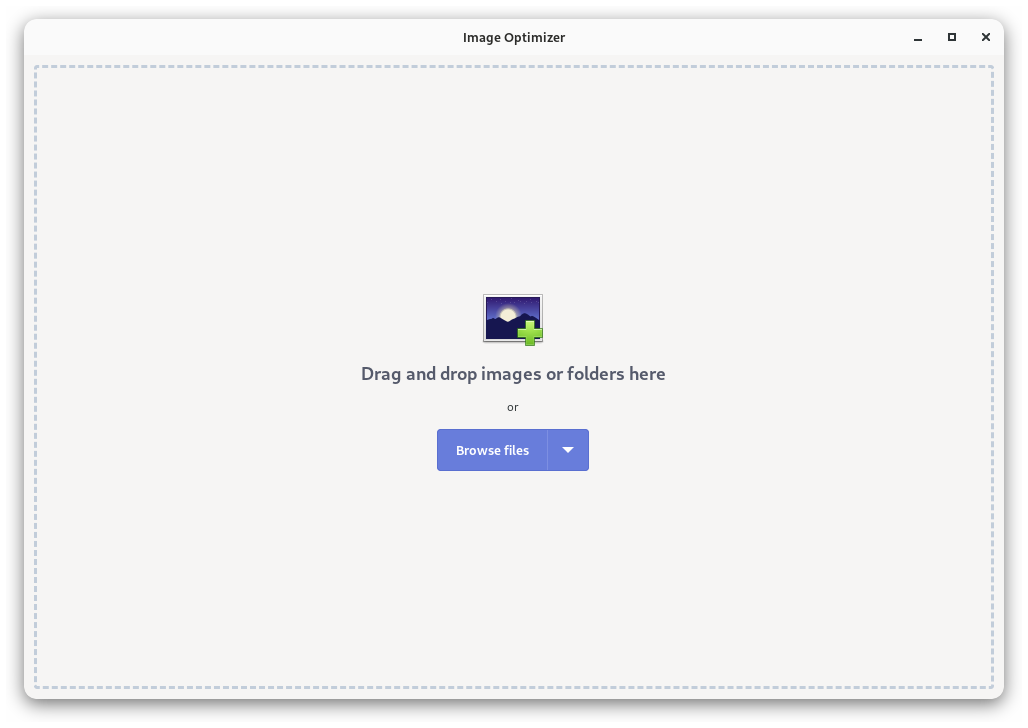
- Adding images and adding a folder are one button now, on the welcome screen and in the title bar, instead of two buttons asking the same question
- PNG and JPEG go through one optimizer now, and both come out smaller than before. Measured over ten images, the average saving on a PNG went from 10.6 percent to 17.6 percent, and on a JPEG from 3.3 percent to 5.9 percent. PNG images are optimized faster than they were as well
- The bar across the top of the window is painted by the app now, so it looks the same on every desktop instead of taking on whatever the installed theme wanted it to be
- Fixed a line appearing between the title bar and the column headings above the list
0.5.19 Sept 2026
- Fixed photos coming out of the app on their side. The orientation flag lives in the Exif block, which was being stripped, so a portrait photo taken on a phone was shown rotated afterwards even though not a single pixel had changed
- The capture date, the camera and the location are kept as well, where they used to be thrown away with that same block. Keeping all of it costs a few hundred bytes
- PNG images keep what they say about their own colours now, as JPEG images already did. The colour profile, the gamma and the primaries were all being thrown away, so a wide-gamut PNG came back looking different
- Quitting in the middle of a batch can no longer leave a file half written. The app now waits for the file it is writing before it closes
0.5.013 Aug 2026
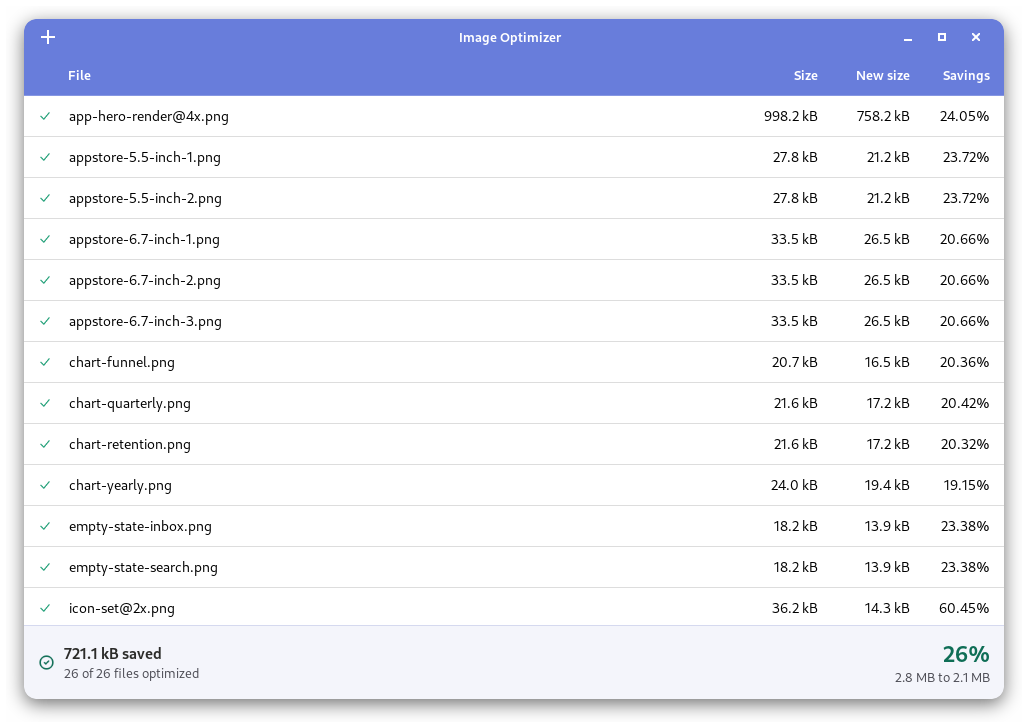
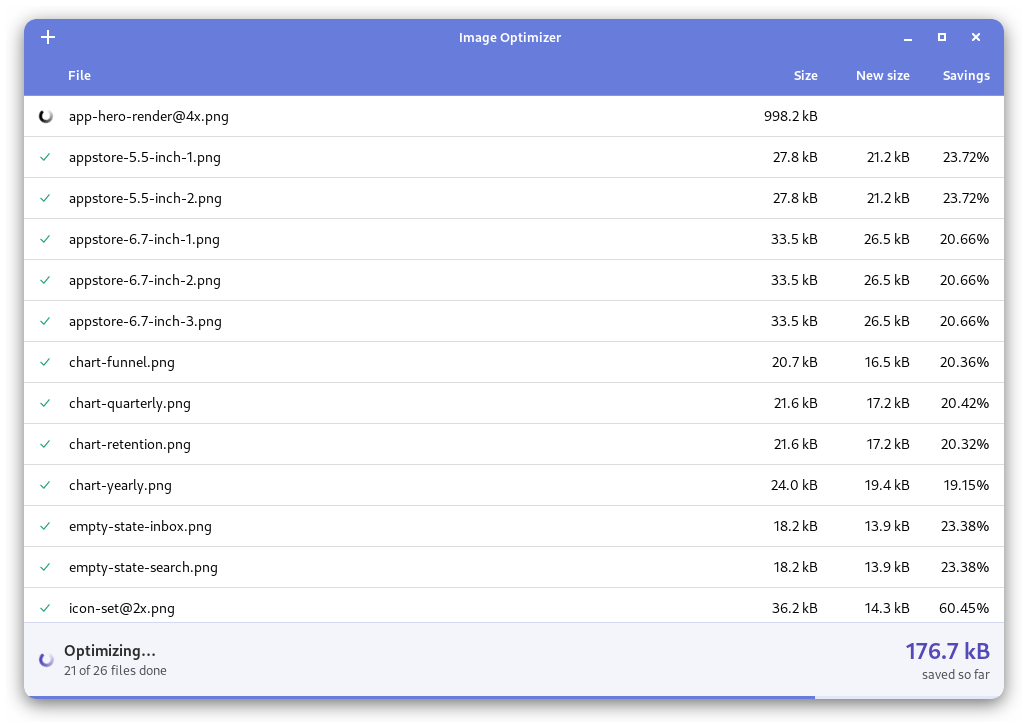
- A bar under the list now adds everything up: how much came off in total, how many files were done and what percentage that is. While it is working it shows how far along it is
- Files that cannot be optimized no longer disappear from the list. They stay, with a line under the name saying why: not a PNG or JPEG, already as small as it gets, or the reason it could not be written
- A file that was already as small as it gets is now told apart from one that failed. Both used to look the same
- The window can be made much smaller, down to 460 by 320, and still shows everything. It opens at the size it always did
- The list has been redrawn, with an icon in front of every row saying how it went, numbers lined up under their headings, and larger type throughout
- The Flatpak version uses the graphics card again. It had been drawing every frame and every letter on the processor
- Fixed rows lighting up when clicked and columns being draggable, in a list where there is nothing to select or rearrange
- Fixed the button on the welcome screen taking on the system accent colour, which put a red outline around it on some systems
0.4.012 Aug 2026
- Image Optimizer no longer asks for access to your whole home folder. It is handed only the images you pick, through the system file chooser, and dragging images in keeps working the same way
- Images in a folder you have no permission to write to are now optimized as well, where they used to be skipped
- Fixed an image that could not be rewritten being reported as optimized, with a saving it never made